Directing IP packet to a specific NIC (Network Interface Card)
When we have multiple Network Card on the PC, there would be some cases where we want to flow to a specific network card that you want. The surest way would be to remove the whole routing table on your PC and add only one specific Network Card to the table, but this would be the most risky thing as well unless you know for sure on how to recover the original table. Otherwise, you would lose all the critical connection (like internet etc).
- Directing Packets by Metric value
- Would all the IP packets goes through NIC with the lowest metric value ?
- Is there any way to distribute IP traffics among multiple NIC ?
Directing Packets by Metric value
So, in this tutorial I would show you how to direct a data flow to a specific network card by changing Metric value of the network card.
Step 1 : Figure out and remember the ip address and interface ID of each of your network Card
C:\>ipconfig
Windows IP Configuration
Tunnel adapter Local Area Connection 3:
Connection-specific DNS Suffix . :
IPv6 Address. . . . . . . . . . . : fd3a:255f:a321:6985:63b1:16f9:7569:a608
Link-local IPv6 Address . . . . . : fe80::751a:739b:86c3:f2c8%24
Autoconfiguration IPv4 Address. . : 169.254.242.200
Subnet Mask . . . . . . . . . . . : 255.255.0.0
Default Gateway . . . . . . . . . :
Wireless LAN adapter Wireless Network Connection:
Connection-specific DNS Suffix . : us.anritsu.com
Link-local IPv6 Address . . . . . : fe80::2c3e:aabf:6ffa:8145%12 <-- Interface ID
IPv4 Address. . . . . . . . . . . : 172.25.228.101
Subnet Mask . . . . . . . . . . . : 255.255.254.0
Default Gateway . . . . . . . . . :
Ethernet adapter Local Area Connection:
Connection-specific DNS Suffix . : us.anritsu.com
Link-local IPv6 Address . . . . . : fe80::206c:68b4:2d2a:2f00%11 <-- Interface ID
IPv4 Address. . . . . . . . . . . : 172.25.228.103
Subnet Mask . . . . . . . . . . . : 255.255.254.0
Default Gateway . . . . . . . . . : 172.25.228.1
Step 2 : Check current route table and check metrics for each network card (lower Metric value means higher priority to be used).
C:\>route -4 PRINT // I used option '-4' to check only IPv4 info. But depending on your network,
// you may need to get all the network info. In that case, just remove '-4'
===========================================================================
Interface List
24...02 f0 95 b2 10 01 ......BlackBerry Virtual Private Network
12...3c a9 f4 45 dd 58 ......Intel(R) Centrino(R) Ultimate-N 6300 AGN
11...f0 1f af 28 8d 92 ......Intel(R) 82579LM Gigabit Network Connection
1...........................Software Loopback Interface 1
23...00 00 00 00 00 00 00 e0 Microsoft 6to4 Adapter
35...00 00 00 00 00 00 00 e0 Microsoft ISATAP Adapter #2
25...00 00 00 00 00 00 00 e0 Microsoft ISATAP Adapter #3
34...00 00 00 00 00 00 00 e0 Teredo Tunneling Pseudo-Interface
===========================================================================
// You would notice that Wired Lan Card has higher priority than WiFi in this PC
IPv4 Route Table
===========================================================================
Active Routes:
Network Destination Netmask Gateway Interface Metric
0.0.0.0 0.0.0.0 172.25.228.1 172.25.228.101 125 <-- WiFi
0.0.0.0 0.0.0.0 172.25.228.1 172.25.228.103 21 <-- Wired
127.0.0.0 255.0.0.0 On-link 127.0.0.1 306
127.0.0.1 255.255.255.255 On-link 127.0.0.1 306
127.255.255.255 255.255.255.255 On-link 127.0.0.1 306
169.254.0.0 255.255.0.0 On-link 169.254.84.211 261
169.254.84.211 255.255.255.255 On-link 169.254.84.211 261
169.254.255.255 255.255.255.255 On-link 169.254.84.211 261
172.25.228.0 255.255.254.0 On-link 172.25.228.103 276
172.25.228.0 255.255.254.0 On-link 172.25.228.101 281
172.25.228.103 255.255.255.255 On-link 172.25.228.103 276
172.25.229.255 255.255.255.255 On-link 172.25.228.103 276
172.25.229.255 255.255.255.255 On-link 172.25.228.101 281
224.0.0.0 240.0.0.0 On-link 127.0.0.1 306
224.0.0.0 240.0.0.0 On-link 172.25.228.103 276
224.0.0.0 240.0.0.0 On-link 169.254.84.211 261
224.0.0.0 240.0.0.0 On-link 172.25.228.101 281
255.255.255.255 255.255.255.255 On-link 127.0.0.1 306
255.255.255.255 255.255.255.255 On-link 172.25.228.103 276
255.255.255.255 255.255.255.255 On-link 169.254.84.211 9999
255.255.255.255 255.255.255.255 On-link 172.25.228.101 281
===========================================================================
Persistent Routes:
None
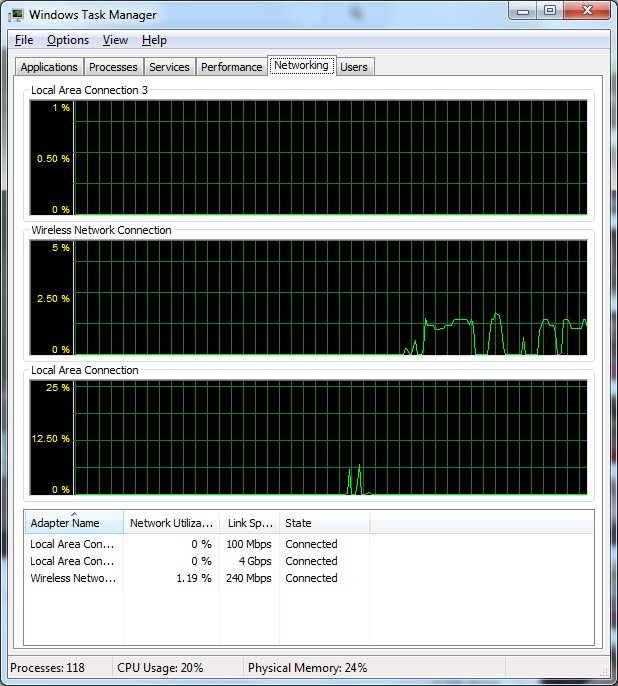
Step 3 : Verify data flows as shown in the routing table shown above. Run Windows Task Manager and select 'Network' tab. And then browser or download file or youTube.. check the data flows via the network card with lowest Matric would flow the most data.

Step 4 : Change the Metric of WLAN Card and Wired Card. In this example, I allocate large metric value to Wired Card and lower metric value to WLAN Card.
// '11' is interface ID for Wired Card in this PC. You may have different number in your PC. Confirm it with ipconfig
C:\>route change 0.0.0.0 MASK 0.0.0.0 172.25.228.1 metric 100 if 11
OK!
// '12' is interface ID for WLAN Card in this PC. You may have different number in your PC. Confirm it with ipconfig
C:\>route change 0.0.0.0 MASK 0.0.0.0 172.25.228.1 metric 1 if 12
OK!
// Confirm that Metric Value of the interface card has been changed. It seems that in Windows 7, the value '20' is added to the metric value you specified
C:\>route -4 PRINT
===========================================================================
Interface List
24...02 f0 95 b2 10 01 ......BlackBerry Virtual Private Network
12...3c a9 f4 45 dd 58 ......Intel(R) Centrino(R) Ultimate-N 6300 AGN
11...f0 1f af 28 8d 92 ......Intel(R) 82579LM Gigabit Network Connection
1...........................Software Loopback Interface 1
23...00 00 00 00 00 00 00 e0 Microsoft 6to4 Adapter
35...00 00 00 00 00 00 00 e0 Microsoft ISATAP Adapter #2
25...00 00 00 00 00 00 00 e0 Microsoft ISATAP Adapter #3
34...00 00 00 00 00 00 00 e0 Teredo Tunneling Pseudo-Interface
===========================================================================
IPv4 Route Table
===========================================================================
Active Routes:
Network Destination Netmask Gateway Interface Metric
0.0.0.0 0.0.0.0 172.25.228.1 172.25.228.103 120 <-- Wired
0.0.0.0 0.0.0.0 172.25.228.1 172.25.228.101 21 <-- WiFi
127.0.0.0 255.0.0.0 On-link 127.0.0.1 306
127.0.0.1 255.255.255.255 On-link 127.0.0.1 306
127.255.255.255 255.255.255.255 On-link 127.0.0.1 306
169.254.0.0 255.255.0.0 On-link 169.254.84.211 261
169.254.84.211 255.255.255.255 On-link 169.254.84.211 261
169.254.255.255 255.255.255.255 On-link 169.254.84.211 261
172.25.228.0 255.255.254.0 On-link 172.25.228.103 276
172.25.228.0 255.255.254.0 On-link 172.25.228.101 276
172.25.228.103 255.255.255.255 On-link 172.25.228.103 276
172.25.229.255 255.255.255.255 On-link 172.25.228.103 276
172.25.229.255 255.255.255.255 On-link 172.25.228.101 276
224.0.0.0 240.0.0.0 On-link 127.0.0.1 306
224.0.0.0 240.0.0.0 On-link 172.25.228.103 276
224.0.0.0 240.0.0.0 On-link 169.254.84.211 261
224.0.0.0 240.0.0.0 On-link 172.25.228.101 276
255.255.255.255 255.255.255.255 On-link 127.0.0.1 306
255.255.255.255 255.255.255.255 On-link 172.25.228.103 276
255.255.255.255 255.255.255.255 On-link 169.254.84.211 9999
255.255.255.255 255.255.255.255 On-link 172.25.228.101 276
===========================================================================
Persistent Routes:
None
Step 5 : Verify data flows as shown in the routing table shown above. Run Windows Task Manager and select 'Network' tab. And then browser or download file or youTube.. check the data flows via the network card with lowest Matric would flow the most data.
Would all the IP packets goes through NIC with the lowest metric value ?
No, not necessarily. The metric value is used by the routing algorithm to determine the best route for a given IP packet, but it is not the only factor that is taken into account. The routing algorithm also considers the network topology, link speed, congestion, and other factors when selecting the best route.
When you have multiple NICs, you can use the metric value to influence the routing decision, but it is not a guarantee that all IP packets will go through the NIC with the lowest metric value. The routing algorithm may choose a different route based on the other factors.
In addition, some applications may bind to a specific NIC or IP address, which can override the routing algorithm's decision. Therefore, it is important to test the routing configuration and ensure that the IP packets are being directed to the desired NIC.
Is there any way to distribute IP traffics among multiple NIC ?
There are different methods for distributing IP traffic among multiple NICs to increase network performance and availability. Here are a few common techniques:
- Round-robin: In this method, the network traffic is evenly distributed among the available NICs in a rotating order. Each incoming packet is sent to the next NIC in the sequence. This technique is simple and effective for load balancing, but it does not take into account the load on each NIC, so it may not be optimal for high-traffic environments.
- Link aggregation (also known as NIC bonding or teaming): This technique combines multiple NICs into a single logical interface to increase bandwidth and redundancy. The NICs are configured to operate in parallel, so the network traffic is spread across all of them. Link aggregation requires support from the NIC drivers and the network switch to work properly.
- Policy-based routing: This method allows you to define different routing policies for specific traffic types, such as based on the source or destination IP address, port number, or protocol. Each policy can be associated with a different NIC or routing table, allowing you to distribute traffic based on specific criteria. This technique requires more advanced configuration and management.
These methods can be used separately or in combination, depending on your network requirements and infrastructure. It's important to test and monitor the network performance to ensure that the traffic is being distributed effectively and evenly.